TIP TRACKING
Connect StreamElements to Widgetdeck
You need to connect your StreamElements account to Widgetdeck only if you are planning to track tips you received to StreamElements. Otherwise, you can completely ignore this section.
- 1
In your Widgetdeck account, open Settings.
- 2
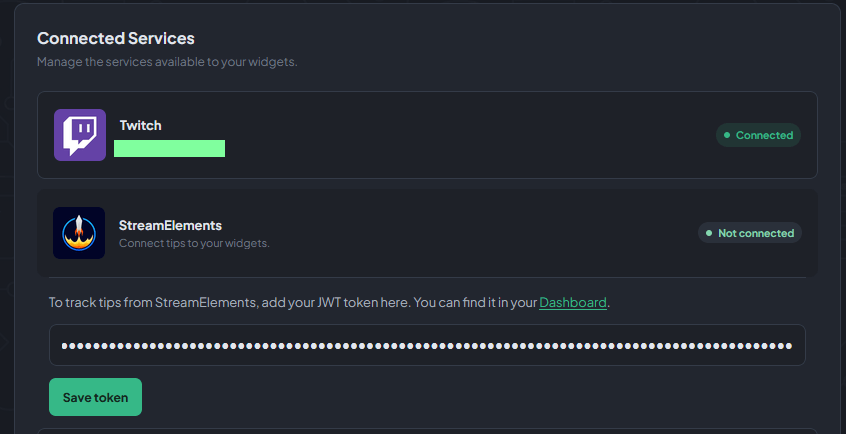
In Connected Services, expand StreamElements.
- 3
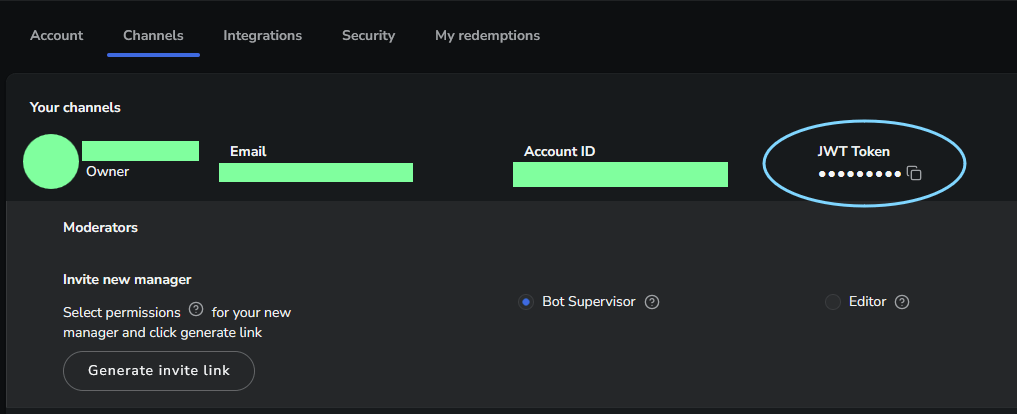
Open the StreamElements dashboard. Select your avatar, choose your channel, and then choose the correct platform channel for tip events. Copy that channel’s JWT.
- 4
Return to Widgetdeck, paste the JWT into the StreamElements token field, and select Save token.
- 5
Wait for the connection status to change to Connected. It may briefly show Connecting while the connection starts.
GET STARTED
Prepare your giveaway
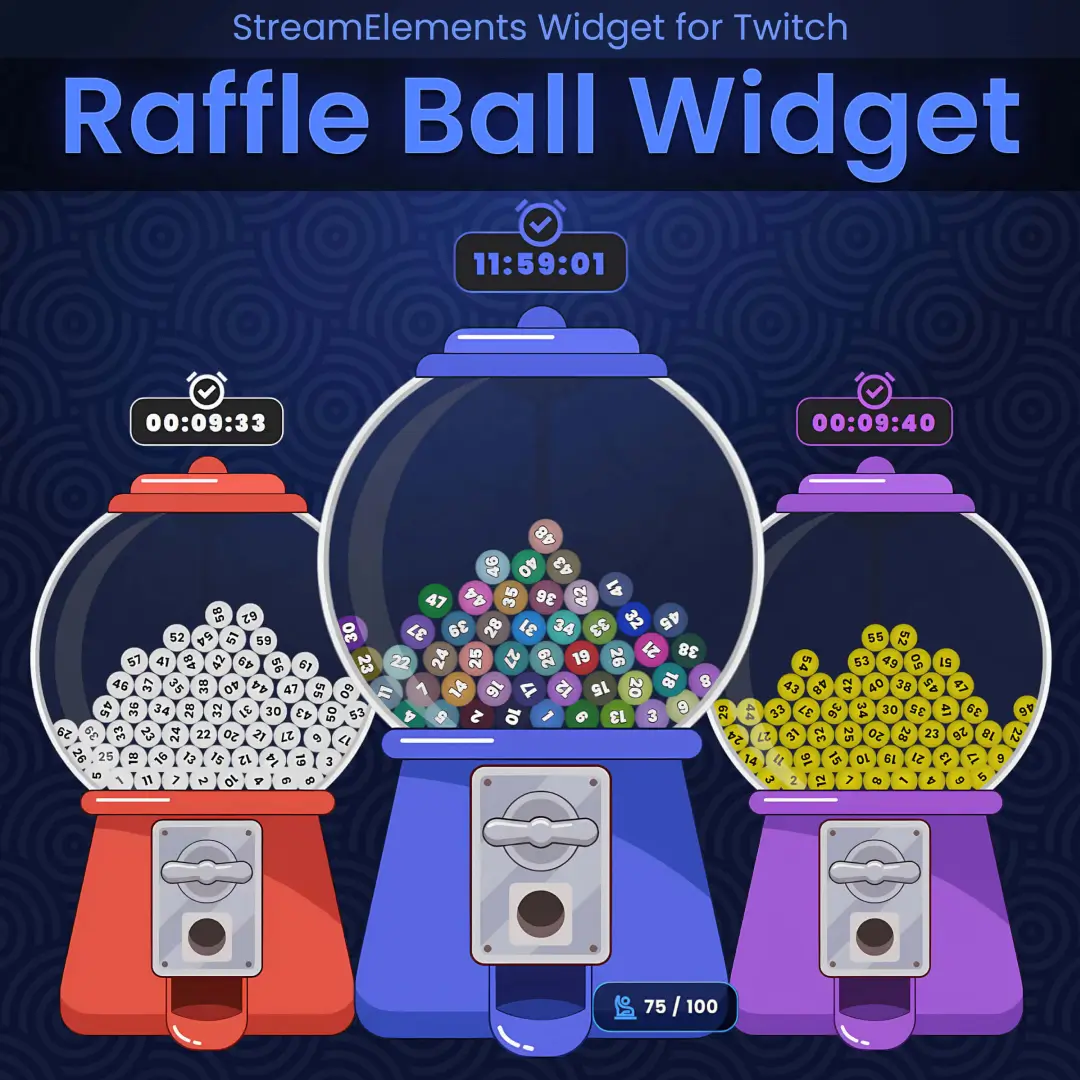
Open the Raffle Ball Widget from My Library. Configure the entry rules, timer, sounds, and appearance before starting your event, then save your changes.
Test before going live. You can test chat commands while offline using your Twitch chat. Once the event starts, avoid refreshing the browser source or changing and saving widget settings: the widget uses session data and can reset. Use the chat commands below to make supported changes during the event.
IMPORT TO OBS
Add the widget to OBS
Open the widget in your Widgetdeck editor and save your settings before adding it to OBS.
Now let’s add the widget to OBS using a Browser Source.
- 1
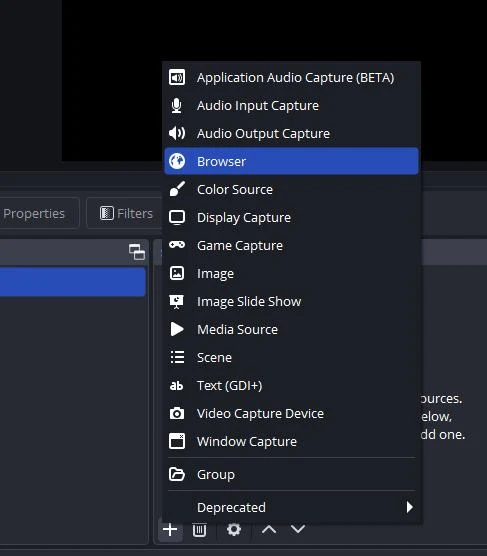
Open OBS and create a new browser source.
- 2
In the Widgetdeck editor, click Copy Widget URL.
- 3
Paste the copied URL into the URL box. Set the width to 1920 and the height to 1080. Click OK.
- 4
Scale and reposition the widget inside OBS by dragging its handles.
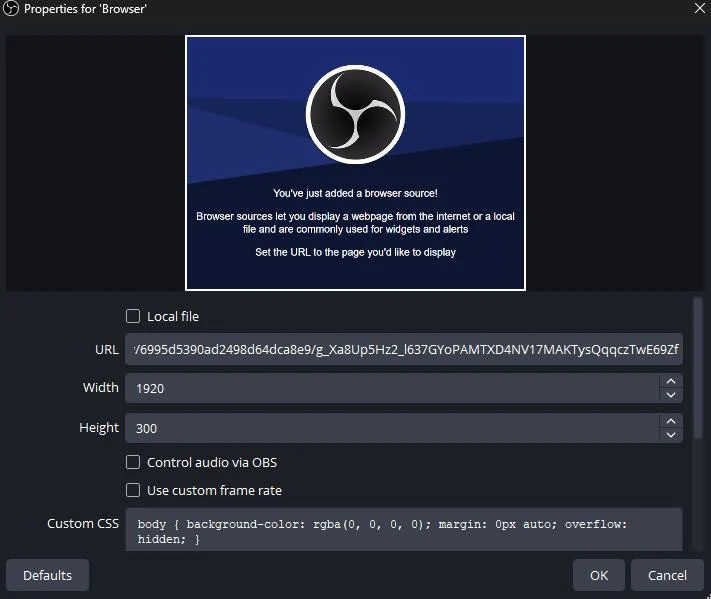

Use the following settings to customize how your widget looks and works.
COMMAND ACCESS
Choose who can control the raffle
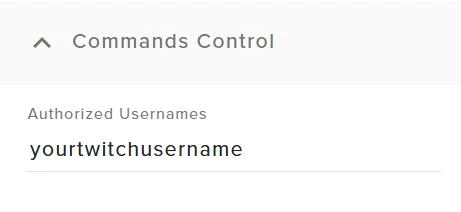
Enter your Twitch username under Authorized Usernames. To allow moderators or other trusted users, add their usernames separated by commas. Include your own username so you can control the raffle.
ENTRY SETTINGS
Decide how viewers join
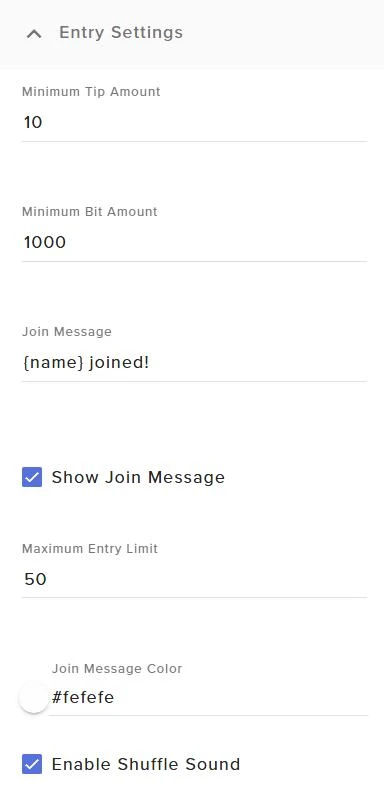
Minimum tip amount: Set the minimum tip a viewer must send to enter and receive a ball.
Minimum bit amount: Set the minimum number of bits a viewer must cheer to enter and receive a ball.
Join message: Customize the message shown when someone enters. Use {name} for the full name or {firstname} for the first name, such as {name} joined the party.
Show join message and message color: Choose whether the message appears and set its text color.
Maximum entry limit: Choose how many entries the raffle allows, up to 100.
Enable shuffle sound: Turn the shuffle sound on or off.
BALL SETTINGS
Customize the raffle balls
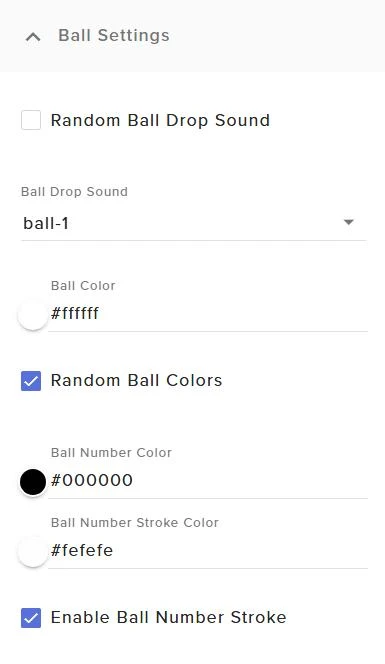
Random ball drop sound: Play a random sound each time a ball drops. For a fixed sound, turn this off and choose a sound from the list. Select None for no drop sound.
Ball color: Pick a single color or enable Random ball colors to give each ball a different color.
Ball number and stroke: Set the number color and its outline color. Uncheck Enable ball number stroke to hide the outline.
WINNER SETTINGS
Style the winner announcement
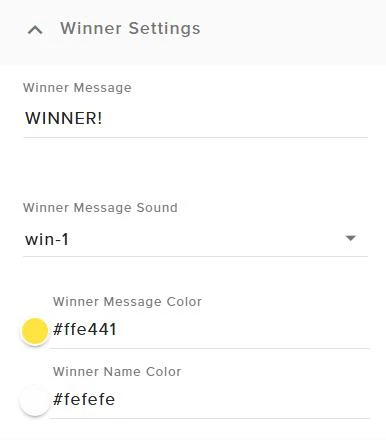
Change the winner message title and choose an announcement sound, or select None to keep it silent. Set separate colors for the winner message and the winner's name.
TIMER SETTINGS
Set the giveaway duration
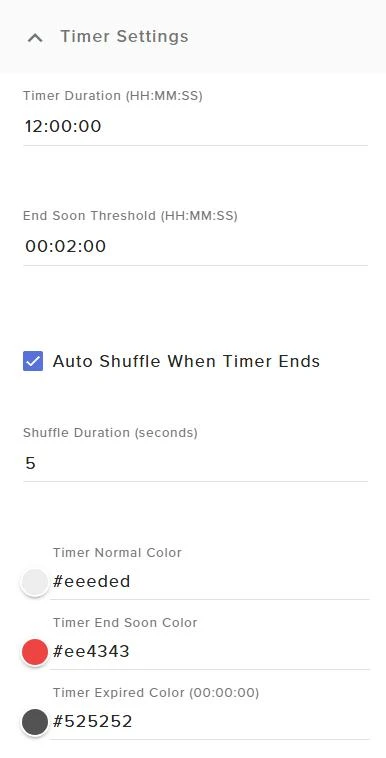
Timer duration: Choose the starting duration. During the event, use !settime or !addtime rather than editing the settings.
End soon threshold: Choose when the timer starts its scale animation to show that time is running out.
Auto shuffle when timer ends: Choose whether the balls automatically shuffle when the timer reaches zero. The auto-shuffle commands can change this during the event.
Shuffle duration: Set how many seconds the shuffle animation runs.
Timer colors: Set the colors for normal, ending-soon, and expired states.
APPEARANCE
Make the machine match your stream
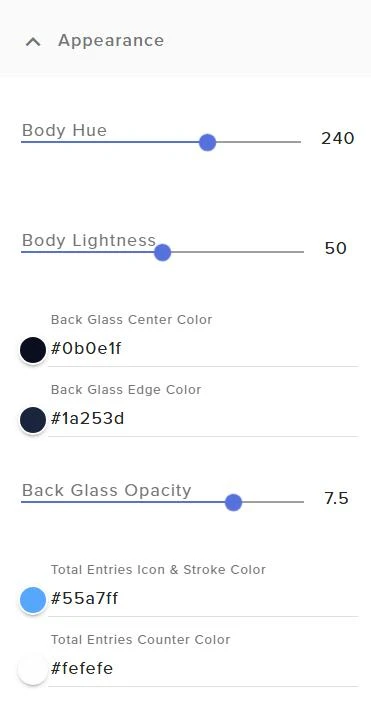
Body hue and lightness: Change the machine's body color and brightness.
Back glass colors and opacity: Adjust the glass background to suit your overlay.
Total entries: Set the counter icon color, stroke color, and counter text color.
CHAT COMMANDS
Control the raffle from Twitch chat
Use these commands from an authorized Twitch account. Time values use HH:MM:SS.
Ball command
!addball JohnAdd a ball for John. Replace John with the entrant's name.Timer commands
!pausetimerPause the timer.!playtimerStart or resume the timer.!settime 02:30:00Set the timer to 2 hours and 30 minutes.!addtime 00:10:00Add 10 minutes to the timer.Winner commands
!showwinnerShow the last winner without auto-hiding or playing a sound.!hidewinnerHide the winner message.Entry counter commands
!hidecounterHide the total entries counter.!showcounterShow the total entries counter.!setlimit 40Set the entry limit. The limit cannot exceed 100 or be lower than the number of current entries.Shuffle commands
!shuffleShuffle the balls to select a winner.!enableautoshuffleEnable automatic shuffling when the timer ends or the entry limit is reached.!disableautoshuffleDisable automatic shuffling.HAVE ANY QUESTIONS?
Get in touch
Contact me via Discord (@widgetsbyshanz) if you need help setting up the widget or find an issue while testing.
READY FOR YOUR GIVEAWAY?